
Please follow the instructions below to add your staff members as contacts. Only contacts who are registered in our system will be able to open support tickets.
-
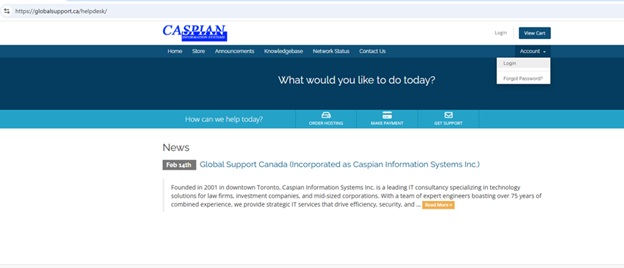
Click on the following link: https://globalsupport.ca
-
Log in using the credentials provided to you by our team via email or text.
-
After logging in, please set up Multi‑Factor Authentication (MFA) using the Google Authenticator app on your phone.
-
Once MFA is configured, log in to your account:
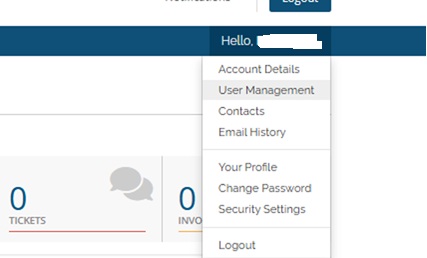
After you login to your account please go to the User Management:
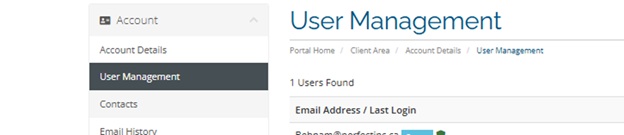
in User management page, please click on "Contact"
then add the new contact and insert proper information for the staff along with their phone number, address should be the address of your office.
** Please make sure to only check the box for the "Domain Emails- renewal........" and save the changes.
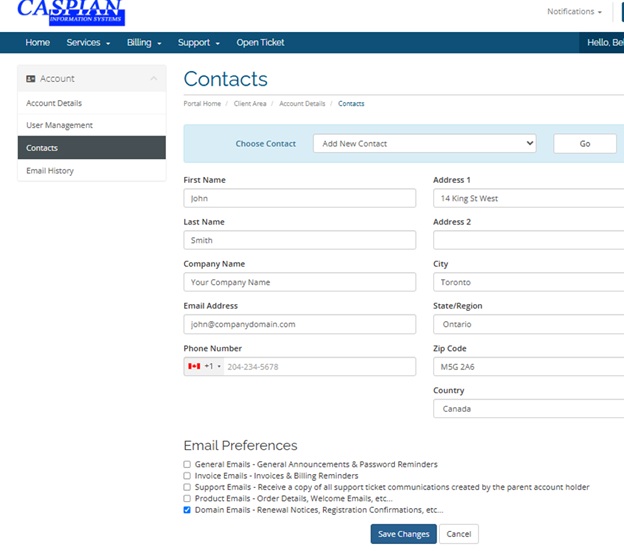
Once this staff member is added as a contact in our system, he or she will be able to open support tickets with our team and communicate with us directly by sending email to: ticket@globalsupport.ca
Account users (Admins) will automatically receive a copy of all tickets submitted by your contacts. You will also be able to view the status of every ticket—whether it is open, answered, or closed.